

How to get any cape on Minecraft Bedrock
On Java, there are plenty of twisted ways to end up with a cape you shouldn't have (see the cape-mod article). On Bedrock, the game is different, the auth is different, but there's still a way -- no mods needed, no network packet trickery. Just a third-party launcher and a version of the game old enough to not have the validation you'd expect.
Here's how to do it, and then we'll look at what's probably happening under the hood.
What you need
- A Microsoft account that already owns Minecraft Bedrock (yours works fine)
- The official Minecraft launcher installed
- BedrockLauncher, an open-source third-party launcher that lets you install and run any historical version of Bedrock
- .NET 8.0 Desktop Runtime
- Developer mode enabled on Windows
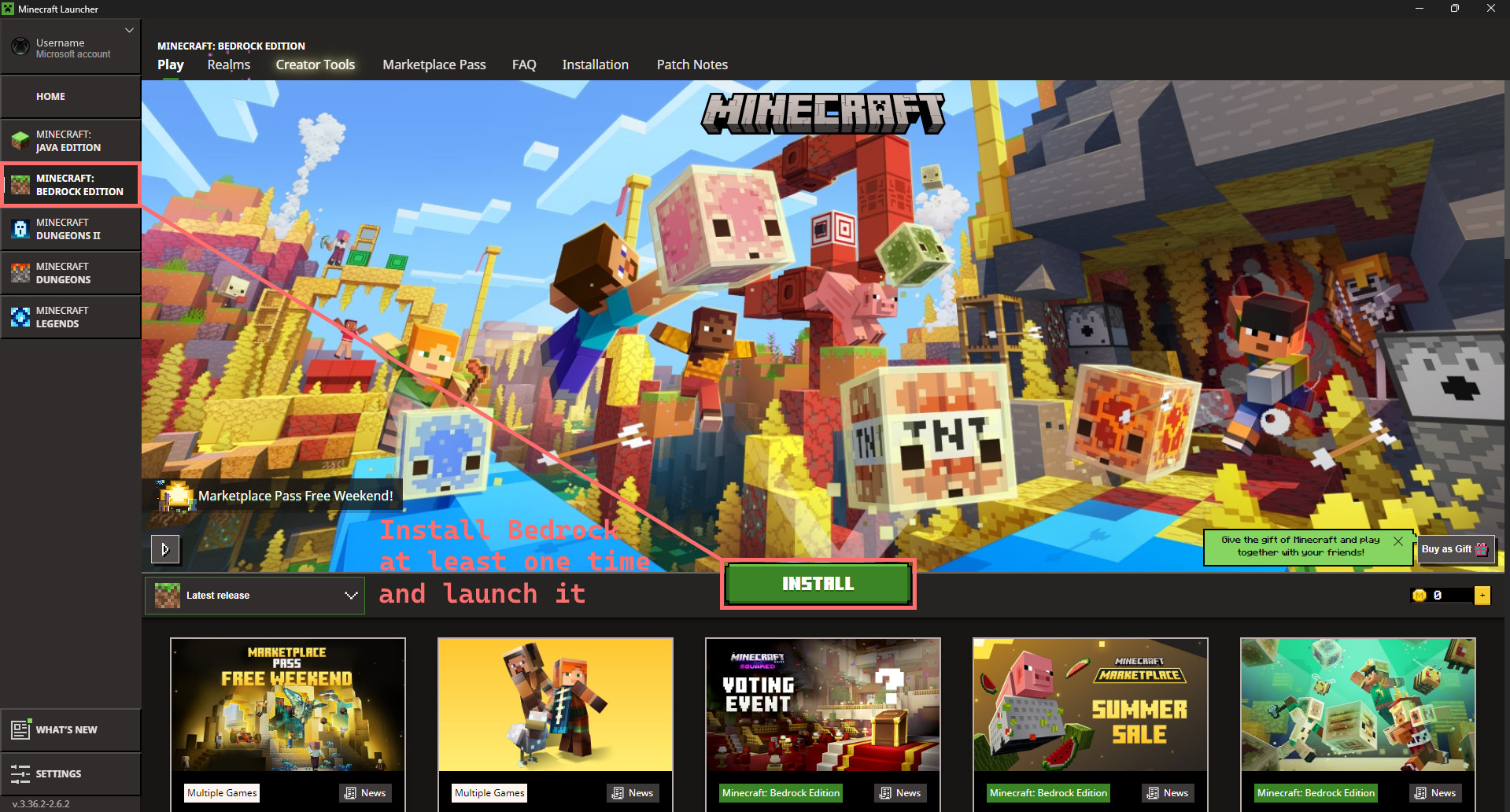
Step 1 -- Install Bedrock at least once with the official launcher
Before doing anything else, open the official Minecraft launcher, go to the Minecraft: Bedrock Edition tab, and click Install. Bedrock needs to have been installed and launched at least once through the official channel before touching BedrockLauncher.
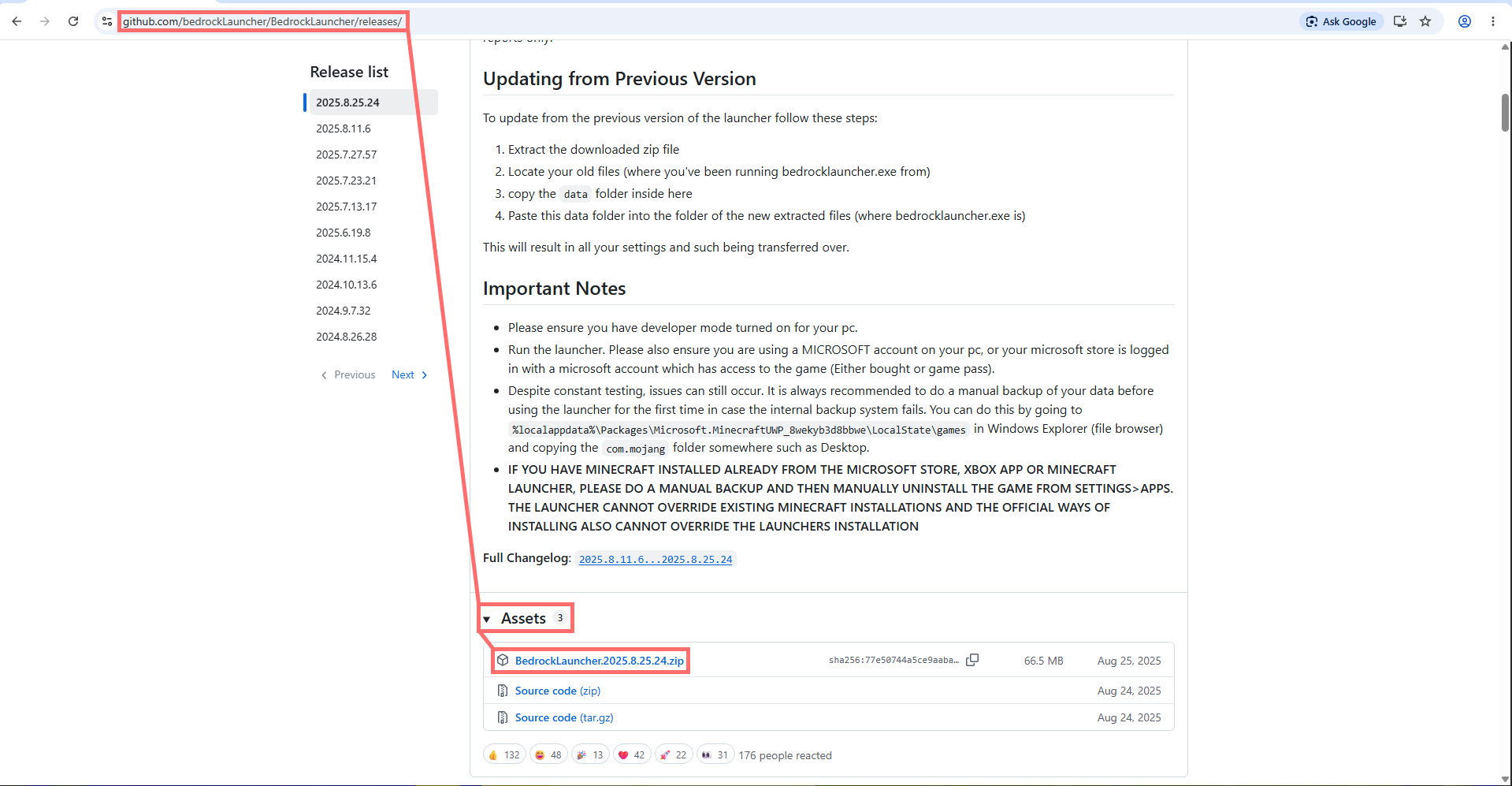
Step 2 -- Download BedrockLauncher
Head to the project's GitHub releases page. Grab the zip of the latest version listed under Assets.
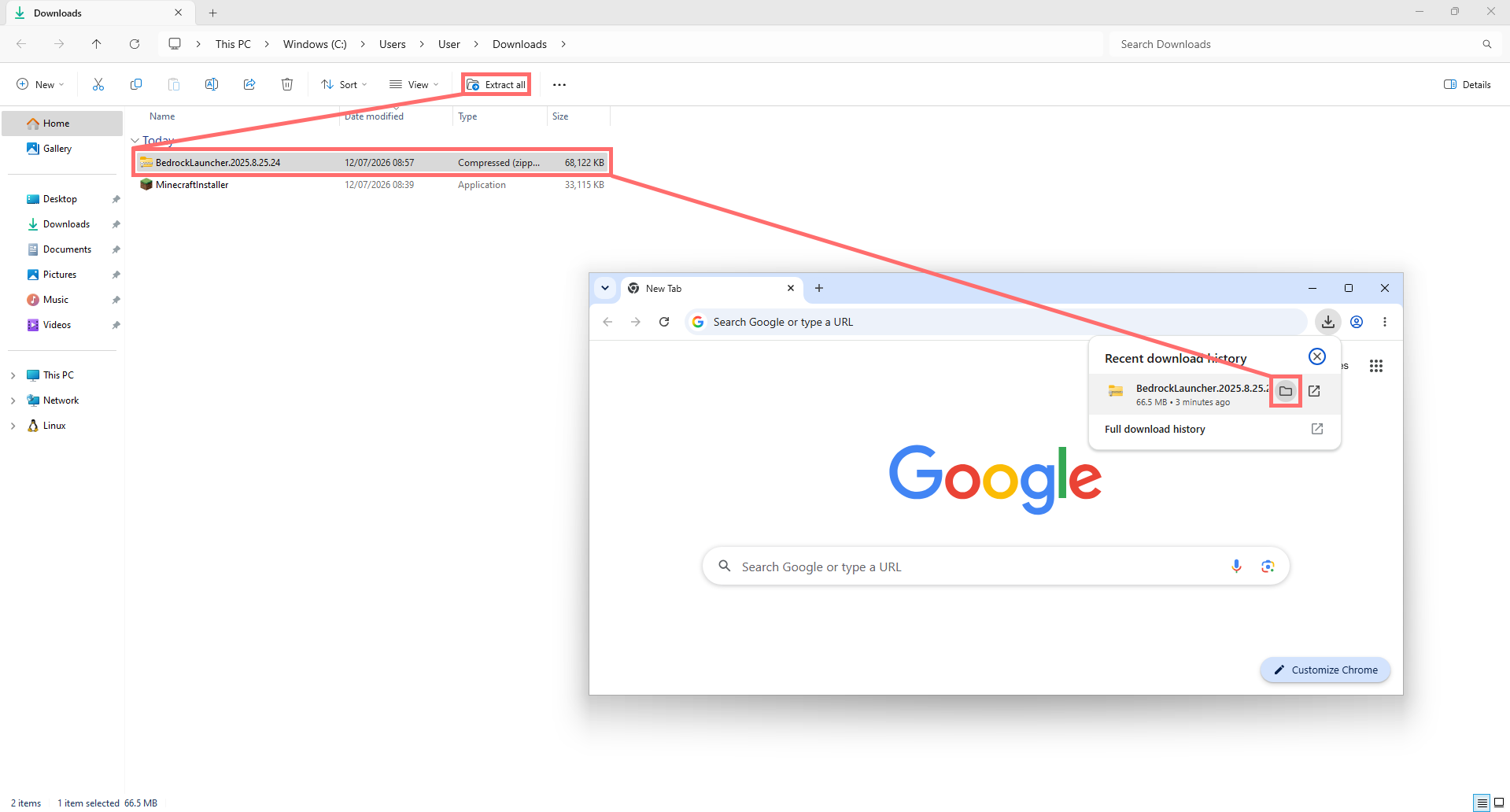
Step 3 -- Extract the archive
Once the zip is downloaded, extract it to your Downloads folder (or anywhere, as long as you can find the folder afterwards).
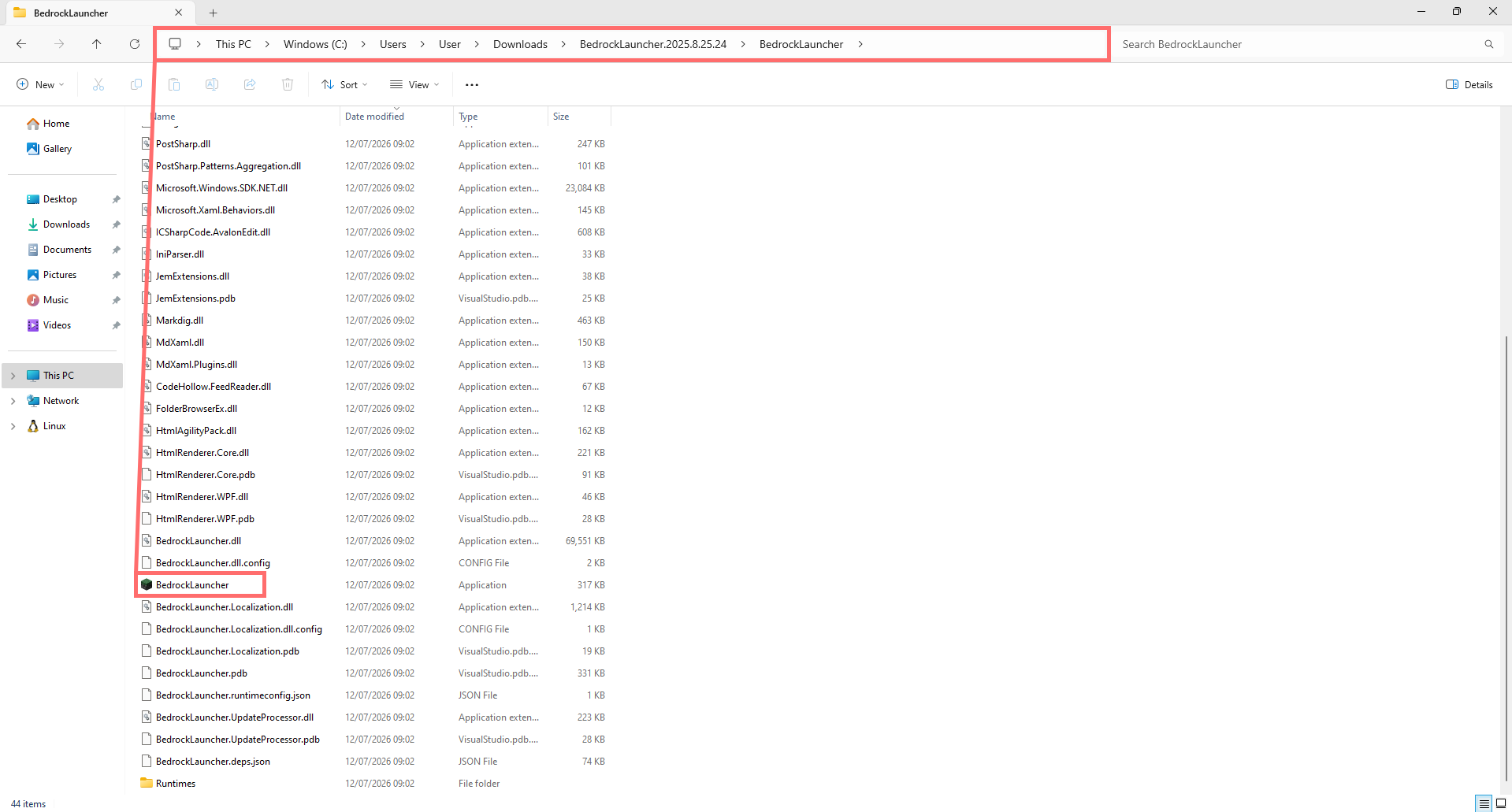
Step 4 -- Run the executable
Go into the extracted folder and run BedrockLauncher.exe.
Step 5 -- Install .NET Desktop Runtime and enable developer mode
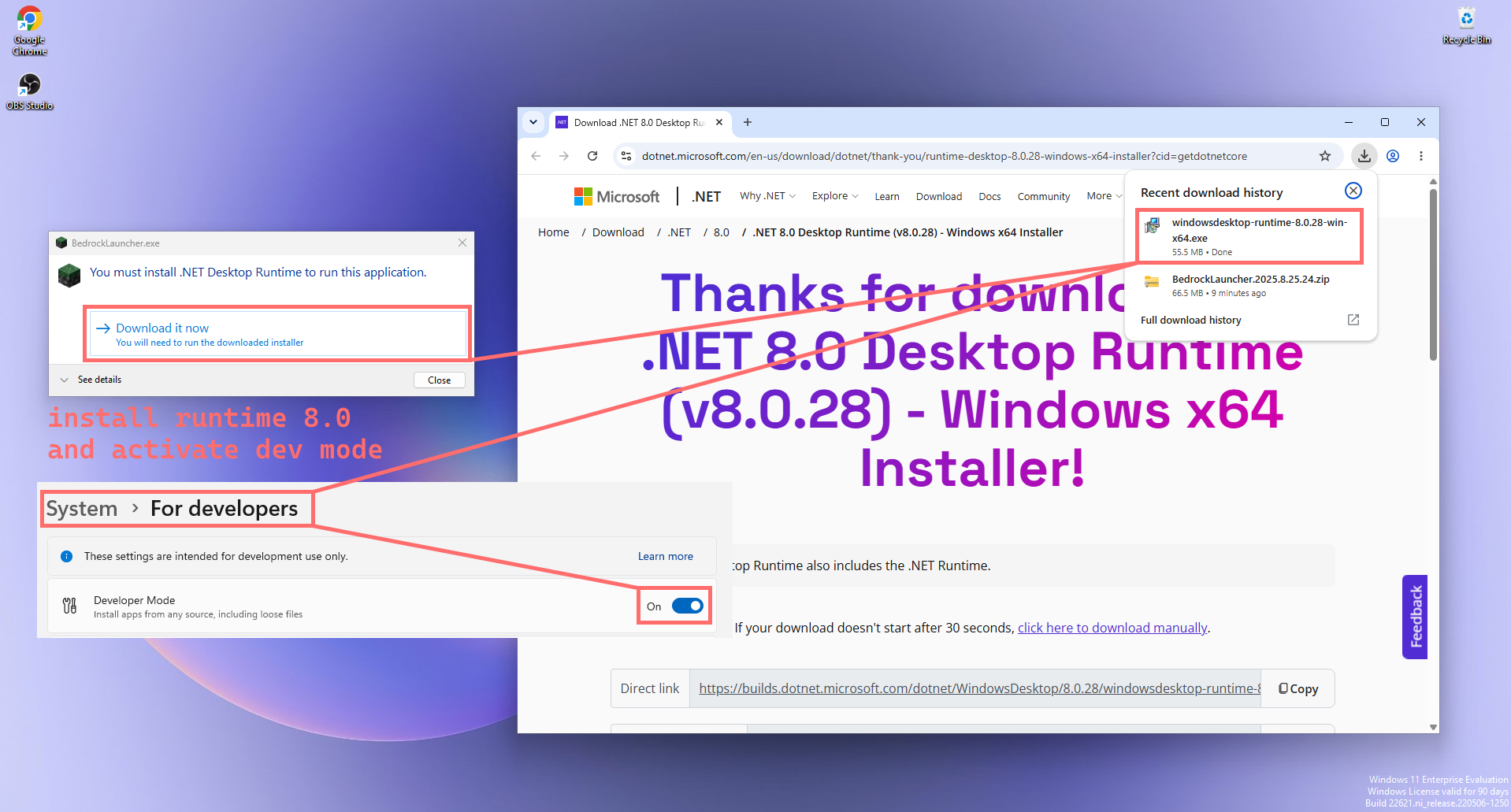
On first launch, Windows will very likely ask you for the .NET 8.0 Desktop Runtime -- install it. You also need to enable developer mode in Settings > System > For developers, because BedrockLauncher installs the game as a loose package (raw files, not a real signed Store package), and Windows refuses this kind of install without that mode.
Step 6 -- Create a new installation
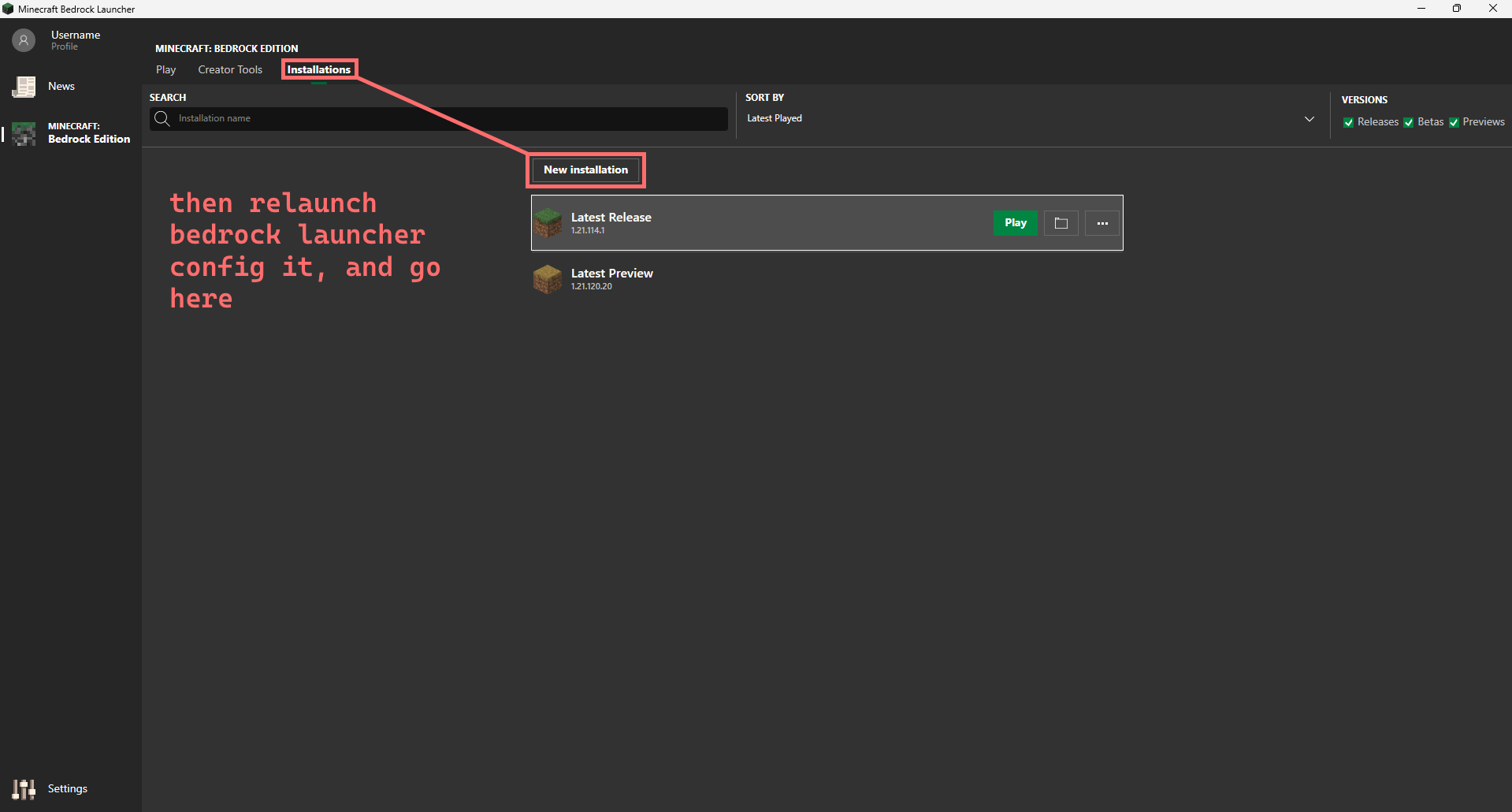
Launch BedrockLauncher again, sign in with your Microsoft account, go to the Installations tab, then click New installation.
Step 7 -- Pick an old version
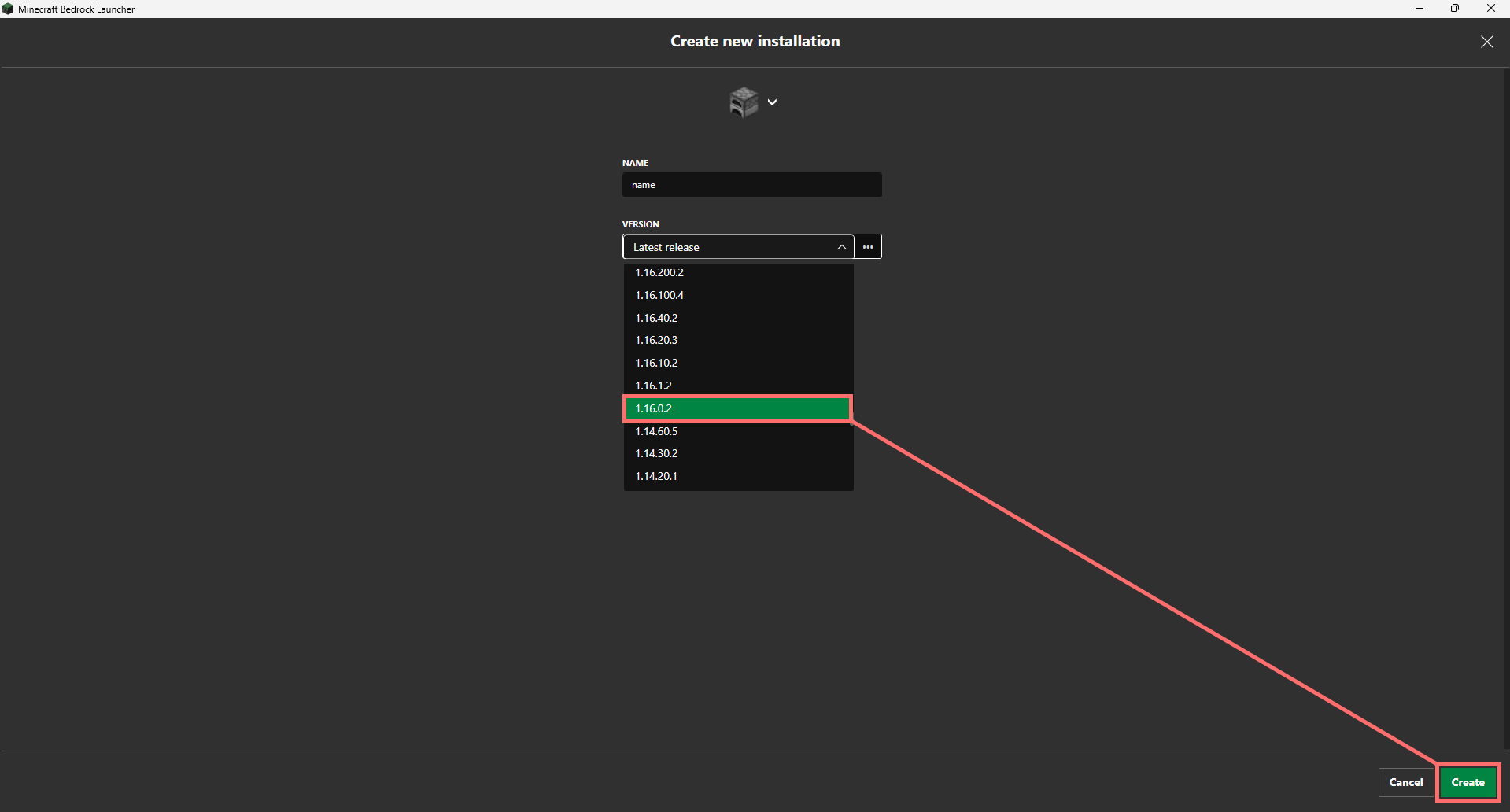
Give the installation a name, then in the version list, pick an old version -- typically 1.16.x or earlier. Click Create.
Step 8 -- Launch the installation
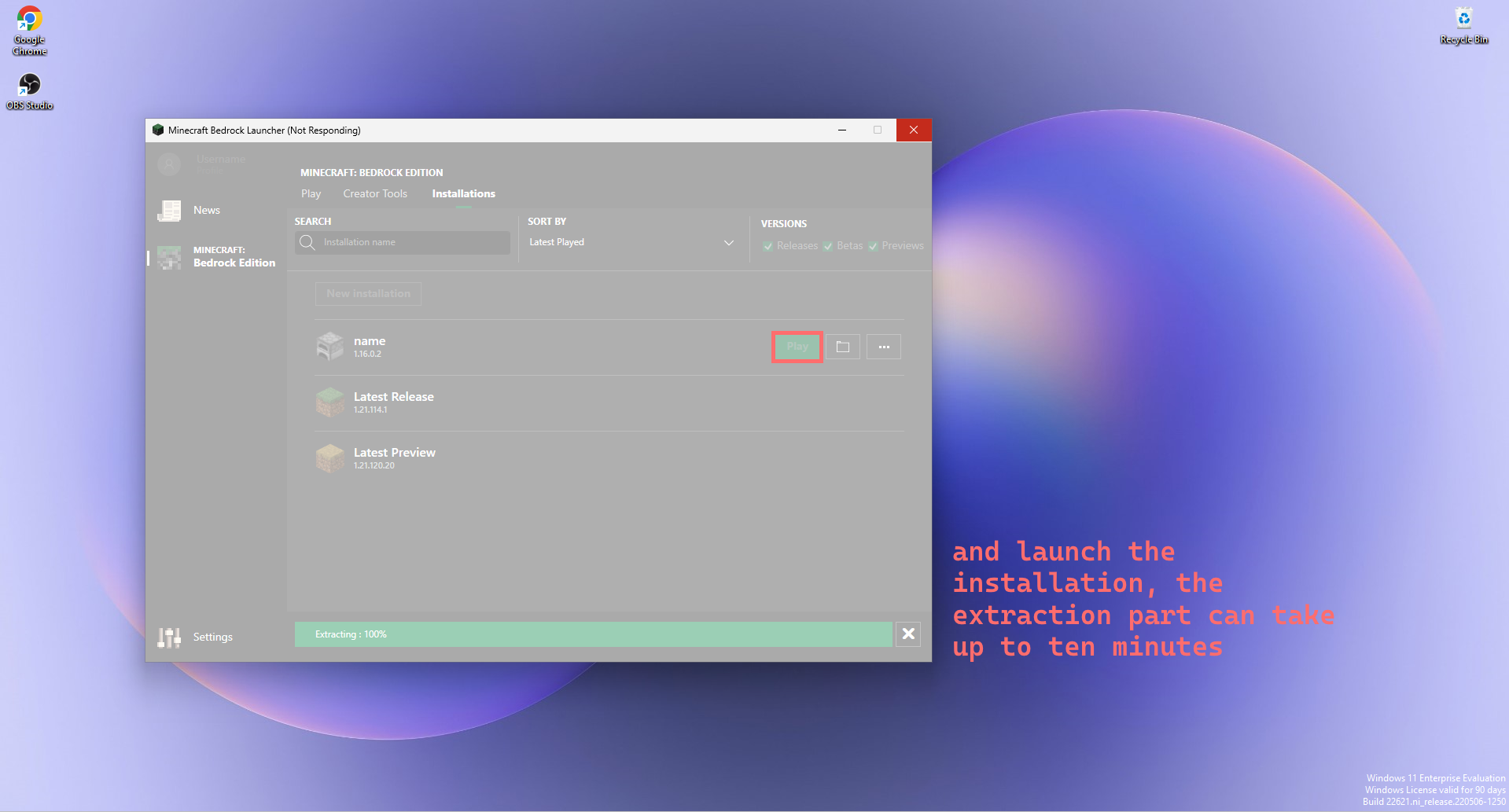
Click Play. File extraction can take up to ten minutes depending on your machine -- the launcher will appear frozen ("Not Responding"), this is normal, let it run.
Step 9 -- Choose the cape
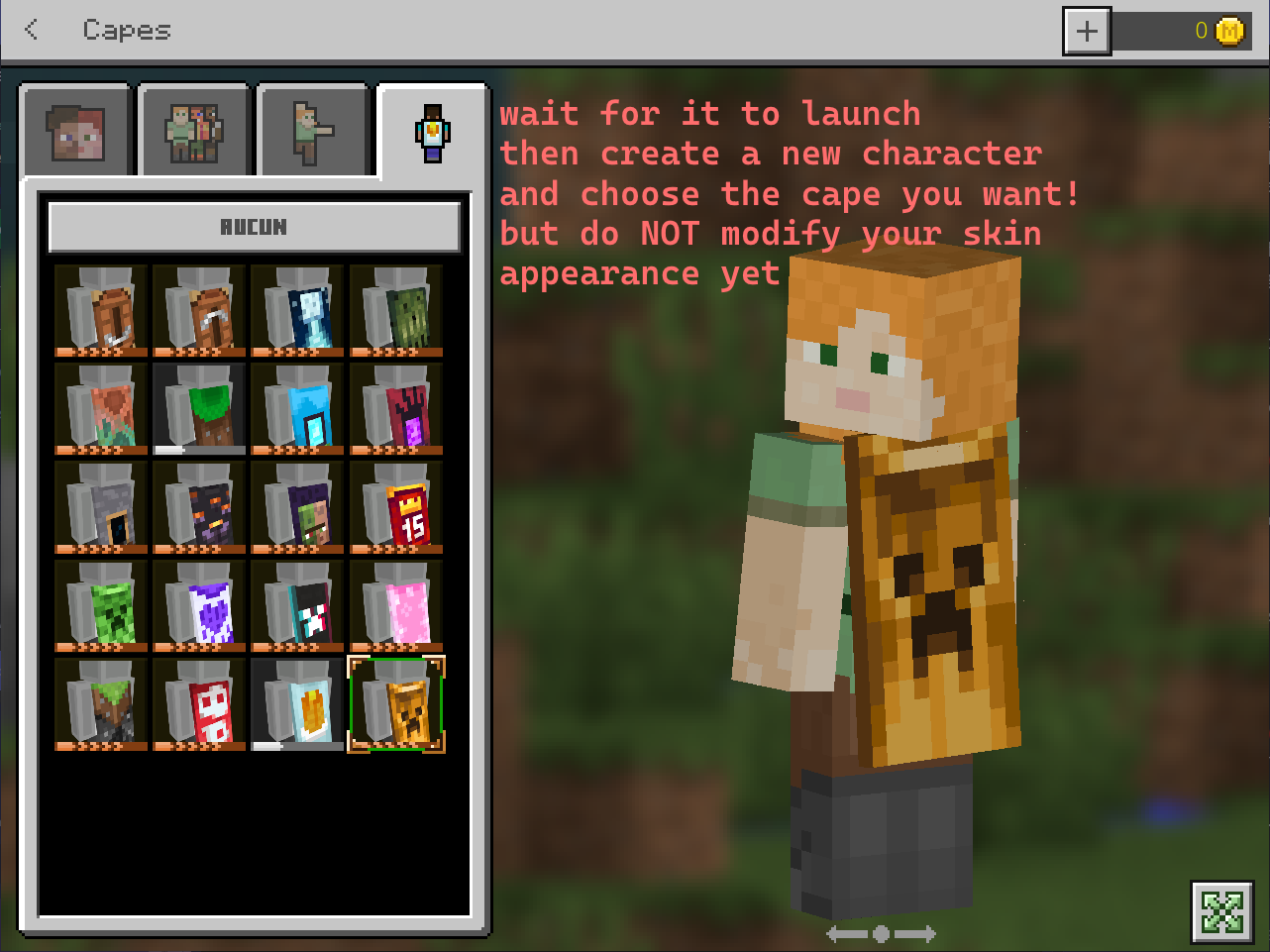
Once the game launches, sign in with your account, create a new character and go to the skin editor, Capes tab. There, you'll find the complete list of every cape that exists in the game -- including ones you never owned (promo event capes, past festivals, Mob Vote capes, etc). Pick whichever one you want.
Don't touch the rest of the skin appearance at this stage, just leave the cape.
Step 10 -- Reinstall the official version
Go back to the official launcher, Installation tab, and click Uninstall on the main Bedrock installation, then reinstall it (or hit Check for Updates). Launch Minecraft Bedrock from the official launcher this time.
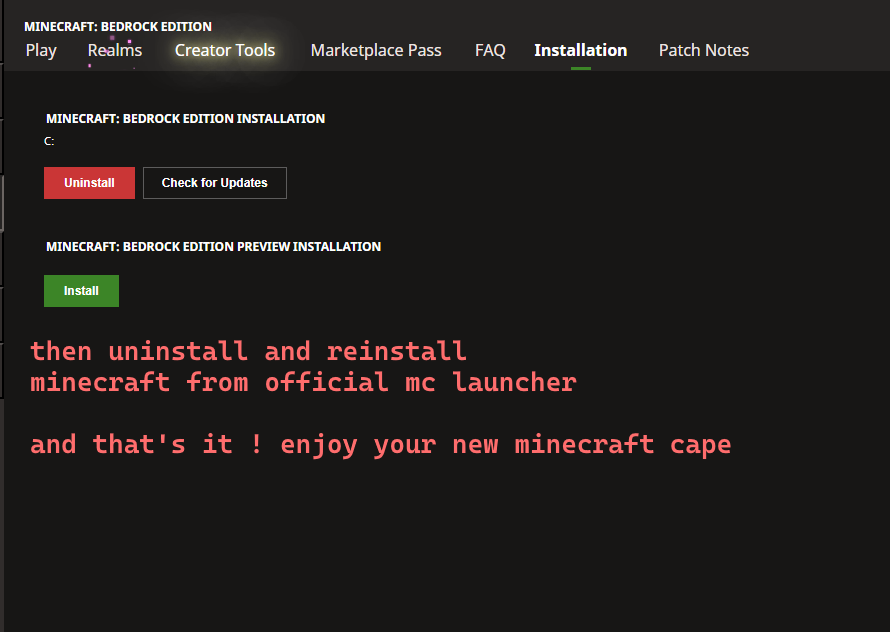
And there you go -- your cape is there, on the official version, on your actual profile.
What's probably happening
I haven't dug into Bedrock's closed-source code (unlike Java which is decompilable), so what follows is a likely explanation, not absolute certainty. But the observed behavior fits the following hypothesis pretty well.
The cape selector was never an access control
On Bedrock, the cape selection screen most likely shows the full list of capes that exist in the game, not just the ones your account owns. On recent clients, an application filter (client-side or via a network call to an Xbox/Microsoft entitlement service) greys out or hides capes you don't own.
The key point is that this filter was probably added after the fact, on a sufficiently recent version of the game. A version like 1.16.x predates this filter, or uses a different (or absent) verification mechanism: everything in the list becomes selectable, entitlement or not.
Where exactly is the cape stored?
This is the part that explains why it survives reinstallation. Your skin/cape choice on Bedrock isn't just a throwaway local file -- it's likely synced to the Xbox Live profile associated with your Microsoft account (the same system that manages your skin on other Bedrock platforms -- mobile, console, etc.). When you select a cape in the old client, it most likely sends that selection to the profile service, exactly the same way an up-to-date client would with a legitimate cape -- because from the client's perspective, there's no difference between a cape "you own" and a cape "chosen". The profile service, for its part, trusts the client on this point: it records the selection without revalidating whether the entitlement actually exists behind it, at least not at write time.
Result: when you relaunch the up-to-date official game, it fetches your current skin/cape from the profile service -- and the service faithfully returns whatever was saved, non-legitimate cape included. The entitlement check, if it exists, likely happens at selection time in the UI (hence the filter on recent clients), not at display time of what's already saved on the profile.
The parallel with Java
It's the same family of logic flaw as the cape-mod on Java: a service trusts data without rechecking its origin at every step. On Java, it's a valid RSA signature replayed on the wrong profile. On Bedrock, it's likely a cape selection accepted by an old client that never had the right filter, then propagated without re-validation to the account's persistent state. In both cases, the problem isn't the entry point (the Java mod, the old Bedrock client) -- it's that the layer that should revalidate the entitlement downstream doesn't do it, or only does it once, in the wrong place.
Why it still works
Two possible explanations, not mutually exclusive:
- Mojang likely doesn't consider this a priority. It requires a third-party launcher, a multi-step process, and the result is purely cosmetic -- no gameplay advantage, no other people's data compromised.
- Fixing this properly would require revalidating entitlements on every profile read, not just on selection -- which means an extra network call on every skin display, for a problem that only concerns aesthetics.
Conclusion
This tutorial fits in ten screenshots, but it illustrates a principle you find everywhere in software security: as soon as a legacy system (an old client version, a legacy API, a never-updated service) can still write into a shared state, the present-day access control only protects what goes through the present. Anything that can still talk to the old API bypasses the newer filter -- not because the filter is broken, but because it was never applied to the version that came before it.
Resources
- BedrockLauncher : github.com/bedrockLauncher/BedrockLauncher
- Related article : Cape Mod, the Java equivalent by RSA signature injection
3 key takeaways
- The cape selector in an old Bedrock version likely shows the full list of all game capes, with no entitlement filter.
- The selection then syncs to your Xbox Live profile like any legitimate cape -- the profile service trusts the client.
- The entitlement check, if it exists, happens at selection in the recent UI -- not at read time of what's already saved on the account.